Troubleshooting guide
How to fix lip sync issues? Start with the source
This page explains lip-sync concepts. The linked Vidione home page offers paid talking-avatar generation from a script, person portrait, and voice; enter those on Vidione after signing in. It does not promise source-video dubbing, singing videos, or reference-motion control. Browser timeline editing does not require a subscription, but AI generation does.
How to fix lip sync issues? First find out whether the delay is in the file or only in playback. Then make one small correction and check the beginning, middle, and end before exporting again.
Link only. Nothing written or selected here is sent to the destination.
Open Vidione
prerequisites
Keep an untouched copy of the source and use one short speaking segment for your first check. You need both picture and sound to diagnose a timing mismatch.
-
1
Keep the original
Save the unedited video and its original audio before changing anything. If you recorded sound separately, keep that recording too. Write down whether the problem appears in the original file, an editing preview, an exported file, or a particular player; those are different starting points.
-
2
Choose clear checkpoints
Find a sharp consonant near the beginning, middle, and end of the clip. A visible mouth closure on a sound such as P, B, or M gives you a more useful reference than a long vowel. Note whether the voice arrives early, arrives late, or gradually drifts.
-
3
Set up a fair comparison
Play the same saved file in a second player or on another device, ideally through built-in speakers before testing Bluetooth headphones. Turn off playback effects or device audio-delay settings if you can identify them. If only one setup sounds wrong, investigate playback before moving tracks in your edit.
numbered steps
Work in this order: compare playback, locate the first mismatch, adjust only what is wrong, then replay the whole clip. For related technique, use these guides.
common errors and fixes
Compare the symptom you can repeat with the correction beside it. Change one variable at a time so a better result has an identifiable cause.
What you observe
What to check and try
Constant offset
What you observe
Every tested word is early or late by about the same amount, including at the end.
What to check and try
Move the audio track a small amount against the video. Check a clear consonant at all three checkpoints before exporting.
Growing drift
What you observe
The first line matches, but later speech is progressively farther from the mouth movement.
What to check and try
Check whether source and timeline frame rates agree, and whether separately recorded audio changed length. Correct the duration mismatch before fine-tuning an offset.
One bad sentence
What you observe
Most of the clip matches, but one cut or spoken line does not.
What to check and try
Inspect that edit boundary for a trimmed syllable, moved clip, or unintended gap. Adjust the affected segment rather than shifting the entire recording.
Preview-only delay
What you observe
The editing preview looks wrong, but the exported file plays correctly elsewhere.
What to check and try
Treat preview performance as the suspect. Review a saved export in another player before changing synchronized source tracks.
Device-only delay
What you observe
The same file matches on one device but not through a particular display or audio connection.
What to check and try
Check that device's audio-delay or picture-processing settings. Compare its built-in output with the external speakers or headphones.
Export-only mismatch
What you observe
The timeline looks aligned, but a newly exported file does not.
What to check and try
Recheck export frame-rate and audio settings, then render a short test segment. Judge the saved file, not just the timeline preview.
advanced tips
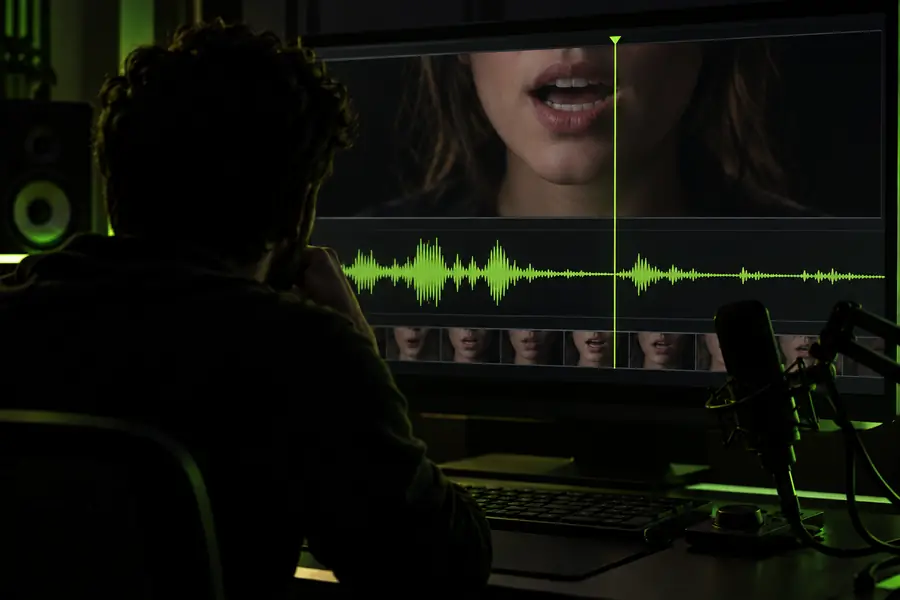
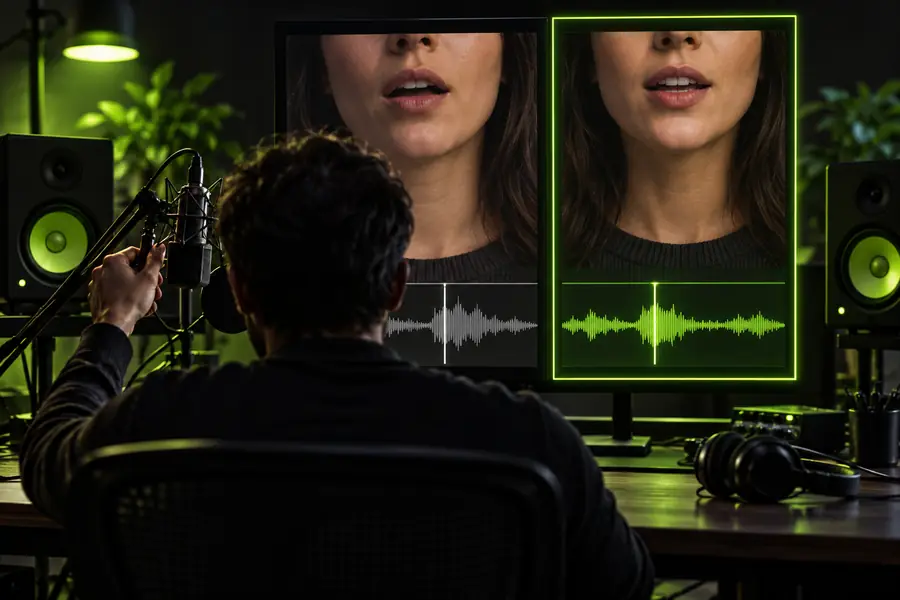
A still image can mark where you intend to check timing, but it cannot prove synchronization. Listen and watch the moving clip before and after each change.
- Before: mark the mismatch
- After: verify in motion
These frames illustrate a checking workflow, not a measured before-and-after repair. Pause at a visible mouth closure, note its position, then replay the exported clip with sound to confirm the change. If you make several edits, keep each test export so you can compare results rather than relying on memory.
advanced tips
Timing corrections have limits. A source that lacks reliable speech or stable playback may need more than an audio shift.
-
A timing shift cannot restore missing speech
If the original recording drops syllables, is heavily clipped, or cuts off a word, moving the track will not replace that information.
WorkaroundReturn to a cleaner recording or rerecord the affected line, then check the edit boundary again.
-
One offset cannot fix gradual drift
Moving a whole track may align the opening while leaving the end wrong when picture and sound have different effective durations.
WorkaroundCompare start and end checkpoints and investigate duration or frame-rate handling before making local adjustments.
-
A good export cannot repair every player
Wireless audio and display processing can introduce a delay that is not present in the saved file.
WorkaroundTest another output path and adjust the affected playback device rather than altering an otherwise correct master.
-
A still frame cannot confirm the fix
A mouth position in one image does not show when its sound plays or whether later words remain aligned.
WorkaroundReview the moving export with audio at the beginning, middle, and end, including around edits.
advanced tips
Ready to test a revised clip?
After isolating the source of the mismatch, use Lip Sync to explore a revised video workflow. Keep your original file, compare the resulting motion with its audio, and verify the saved result in a second player before publishing. The linked product may have its own access requirements and controls.
Open Vidione- Start with a short, clearly spoken segment
- Keep the original recording for comparison
- Review the result at multiple checkpoints
tutorial FAQ
Check the original file and play the same export in another player to locate the problem. If the offset stays constant, adjust the audio position slightly; if it grows, investigate a duration or frame-rate mismatch. Confirm the result near the start, middle, and end.
A growing error usually means a simple track shift is not enough. Compare the length of separately recorded audio with the video, and check how the footage and timeline handle frame rate. Test a short new export after changing one setting.
If the same saved file plays correctly elsewhere, the delay may come from wireless audio or display processing. Compare built-in speakers with the external output and inspect the device's audio-delay settings. Avoid changing your master file until the mismatch is reproducible outside that setup.
Yes, if the rest of the clip is aligned, inspect the cut and adjust only the affected segment. Check that no word was trimmed at either boundary. Then replay the transitions into and out of that line.
Export a short test and watch it with sound in a second player. Check distinct consonants at the beginning, middle, and end, plus any edited joins. A still frame or a smooth timeline preview alone is not enough evidence.