Is there a real-time lip sync AI available? What to check

This page explains lip-sync concepts. The linked Vidione home page offers paid talking-avatar generation from a script, person portrait, and voice; enter those on Vidione after signing in. It does not promise source-video dubbing, singing videos, or reference-motion control. Browser timeline editing does not require a subscription, but AI generation does.

Is there a real-time lip sync AI available? Yes, live lip sync AI exists, but “real-time” can mean a camera preview, a responsive avatar, or a stream viewers can watch. Those are different capabilities. Check which one you need before choosing a workflow.

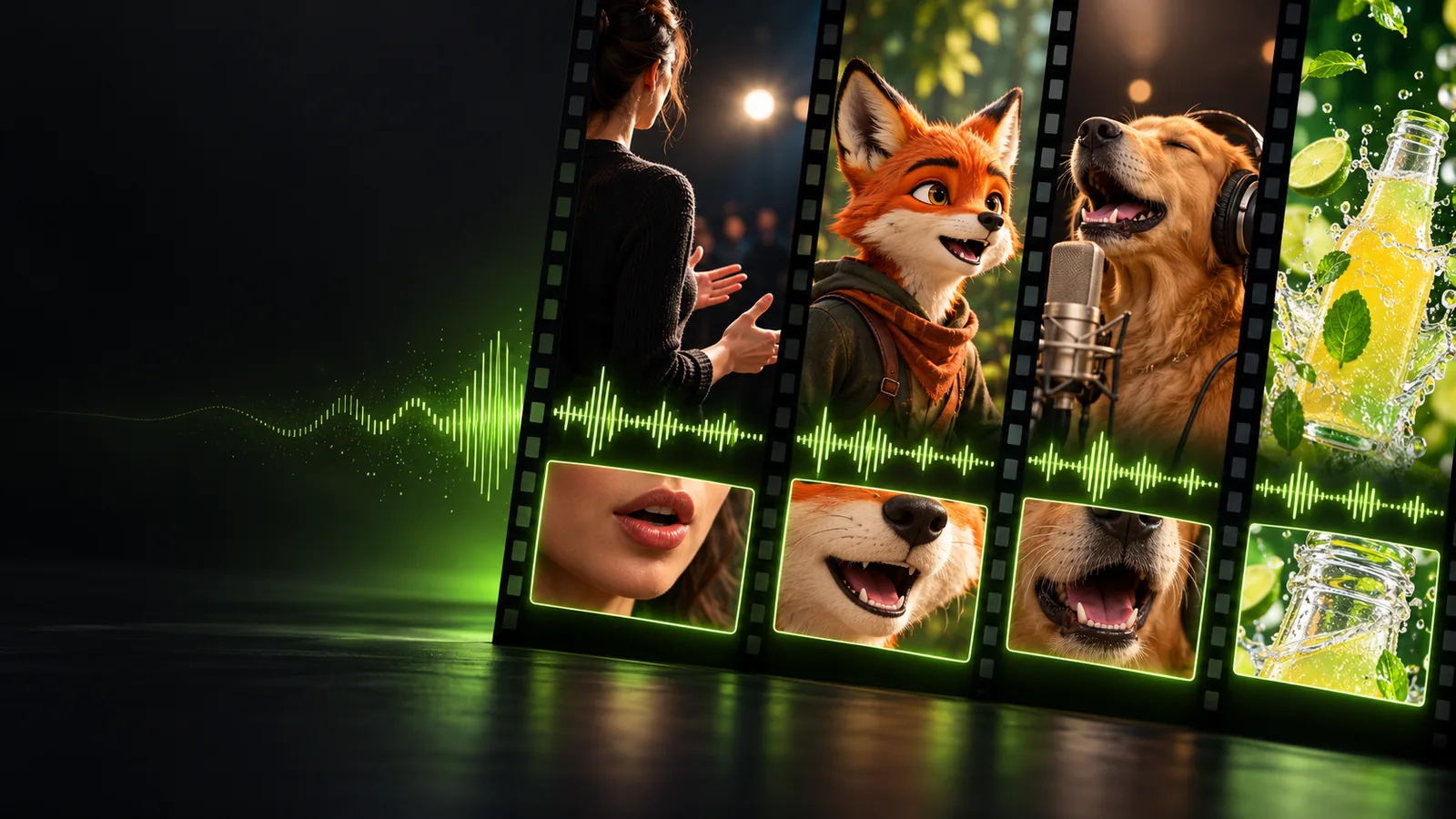
Lip Sync site hero visual

This entry point vs the general one

A general lip sync workflow makes a clip from prepared material. A live workflow must react while audio is arriving; the right entry point depends on whether you need a finished file or an immediate response.

Character animator

You have recorded dialogue and can review each shot before publishing. Live response adds little value when timing can be refined after recording.

For a prepared character clip, compare the separate lip sync animation ai workflow.

lip sync animation ai

Animation student

You want to observe mouth shapes as you speak, then repeat difficult sounds. A responsive preview may help, but it does not replace frame-by-frame study.

Use lip sync practice animation to structure the rehearsal.

lip sync practice animation

Video presenter

You are preparing a scripted video for publication rather than taking questions live. Recording first gives you room to check the audio and visible timing.

See how lip sync for youtube fits an edited publishing workflow.

lip sync for youtube

Stream producer

Your on-screen speaker must respond to incoming audio without stopping the session. Delay and stable tracking matter more than polishing each individual frame.

Keep How to fix lip sync issues? handy for diagnosing a visible audio delay.

How to fix lip sync issues?

The 3 things only it does

These are capabilities to look for in a live system, not promises that every AI tool provides them.

  1. 1

    Accept changing audio

    A live workflow takes speech as it arrives instead of requiring a finished recording before processing begins. Ask whether it accepts microphone input, a live feed, or only an uploaded file.

  2. 2

    Update the mouth during speech

    The visible speaker must respond while someone is talking. A quick preview of a clip that was already generated is not the same as continuous lip sync.

  3. 3

    Keep the response usable

    The picture, voice, and any broadcast path need tolerable delay together. Test an actual speaking turn; a preview that looks aligned locally may still reach viewers late.

Decide first whether your audio is live or already recorded. Then identify the output you need: a local preview, an interactive speaker, or a finished video. Check the relevant workflow before testing with a short spoken passage.

Limits

Live response trades some opportunities for review and correction for immediacy. Test the conditions of your own session rather than relying on a feature name alone.

  • It cannot remove every delay

    Audio capture, processing, rendering, and delivery each take time. A low-delay local preview does not establish the delay a remote viewer will see.

    WorkaroundRecord a test at the viewer end and compare the spoken sound with the visible mouth movement.

  • It cannot guarantee accurate speech shapes

    Rapid speech, interruptions, noise, and a face turned away from view can make mouth movement less convincing.

    WorkaroundTest a realistic passage in the intended environment and review both clear words and difficult transitions.

  • It cannot make an offline export interactive

    A tool may produce a convincing lip-synced video quickly without accepting speech during playback.

    WorkaroundLook specifically for a documented live-input and live-output path if your speaker must respond to an audience.

Comparison details

Use these distinctions when evaluating a specific service. Neither column describes a guaranteed feature of the tool reached from this page.

1

Audio input

Live lip sync workflow

Incoming speech or a live feed

Prepared-clip workflow

A recording prepared in advance

2

When movement appears

Live lip sync workflow

During the speaking session

Prepared-clip workflow

After the clip is processed

3

Primary output

Live lip sync workflow

A responsive preview or stream

Prepared-clip workflow

A video to review and publish

4

Timing priority

Live lip sync workflow

Keeping the ongoing response usable

Prepared-clip workflow

Checking alignment before release

5

Revision opportunity

Live lip sync workflow

Limited during an active turn

Prepared-clip workflow

Available before publishing

6

Best fit

Live lip sync workflow

Interactive speakers and live sessions

Prepared-clip workflow

Scripted scenes and edited posts

Explore a suitable workflow

Start with the input you actually have

If your speech must drive a speaker during a session, verify live input, responsive output, and viewer-side delay before committing to a workflow. If you already have a recording, a prepared-clip route may give you more room to inspect the result. Explore the available video tools and confirm their current capabilities directly.

Open Vidione
  • Check whether audio can arrive live
  • Test visible timing at the viewer end
  • Use a prepared clip when revision matters more than immediacy

Real-time lip sync FAQ

Yes, AI systems can drive mouth movement from incoming speech. Availability of a particular setup depends on whether it supports your audio source and the output you need; a fast offline render alone is not a live system.

Not necessarily. Capture, rendering, and streaming can introduce different delays, so check a recording made from the viewer side rather than judging only the local preview.

A recording can supply audio, but playing it through a preview does not make the speaker responsive to new speech. If interaction matters, confirm that the workflow accepts incoming audio during the session.

Choose a prepared clip when the dialogue is fixed and you want to review timing before publishing. It avoids treating low delay as a requirement when your real goal is an edited result.

Start creating
Start creating