A practical guide to lip sync animation ai

This page explains lip-sync concepts. The linked Vidione home page offers paid talking-avatar generation from a script, person portrait, and voice; enter those on Vidione after signing in. It does not promise source-video dubbing, singing videos, or reference-motion control. Browser timeline editing does not require a subscription, but AI generation does.

Lip sync animation ai helps connect spoken audio with a character’s visible mouth movement, so a still design or animated scene can communicate more clearly. Use this page to understand the workflow before you create.

Link only. Nothing written or selected here is sent to the destination.

Open Vidione

Related workflows

Choose the path that matches your input: practice timing, work toward real-time interaction, or build a broader character sequence.

Core mechanisms

Three mechanisms behind a convincing result

A useful result depends on more than opening and closing the mouth. These three parts help explain what the system is trying to coordinate.

  1. 1

    Read the speech signal

    The workflow identifies timing cues in the voice track, including syllables, pauses, emphasis, and changes in pace.

  2. 2

    Choose visible mouth shapes

    Those timing cues are mapped to a sequence of mouth positions that suggest vowels, consonants, transitions, and resting poses.

  3. 3

    Blend the performance

    The animation combines the mouth movement with the character’s existing face, head position, and scene timing so the speech feels connected to the performance.

Workflow comparison

Manual keyframes or assisted animation

Neither approach removes the need for review. The right choice depends on how much control you need over timing, style, and individual mouth poses.

1

Starting point

Manual keyframes

A blank timeline and a chosen set of mouth poses

AI-assisted lip sync

A character or scene plus spoken audio

2

Timing work

Manual keyframes

Placed and adjusted by the animator

AI-assisted lip sync

Suggested from the speech track, then reviewed

3

Mouth-shape control

Manual keyframes

Direct control over every pose and transition

AI-assisted lip sync

A generated starting sequence with selective adjustments

4

Best fit

Manual keyframes

Highly stylized shots or exact performance direction

AI-assisted lip sync

Dialogue scenes that need a faster first pass

5

Revision style

Manual keyframes

Edit individual keys and curves

AI-assisted lip sync

Change the source, prompt, or selected moments and inspect the result

6

Main consideration

Manual keyframes

More hands-on time for consistent detail

AI-assisted lip sync

Results can vary with audio clarity, character design, and scene movement

Practical applications

Limits and edges to plan around

Lip sync animation ai is most useful when the speech, character, and camera give the mouth enough room to communicate. These scenarios show where planning matters.

Indie animator

You have a designed character and a short dialogue scene but want a timing reference before refining every frame.

Create a first pass, then polish the poses that carry the character’s personality. See the workflow for lip sync practice animation.

lip sync practice animation
Short-form creator

You want a recurring animated host to deliver several concise voiceovers with a consistent visual identity.

Keep the character design and audio style stable while checking each generated mouth sequence before publishing. Compare it with lip sync for animation.

lip sync for animation

Teacher or explainer maker

A visual character needs to speak clearly while the lesson depends on readable timing rather than complex acting.

Use clean audio, a front-facing pose, and deliberate pauses so the mouth movement supports the explanation instead of competing with it. The same principles apply to real-time lip sync AI questions.

real-time lip sync AI

Character designer

You are testing whether a new face design can support speech before committing to a longer animated sequence.

Try a short line first and inspect how well the mouth area remains legible across expressions, angles, and lighting.

lip sync practice animation

Visual check

Before and after the speaking pass

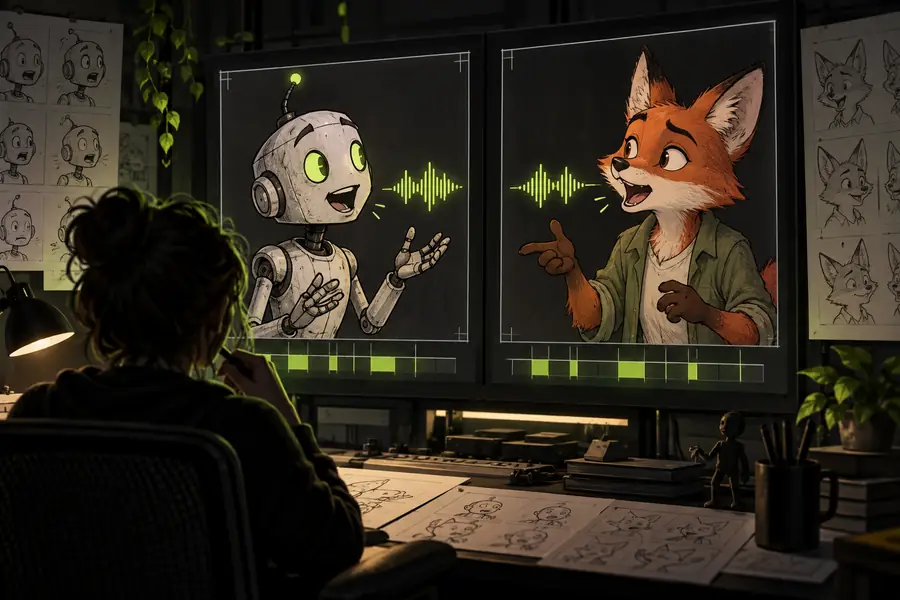
A still character can look complete while remaining difficult to read in dialogue. Comparing the source frame with the animated speaking result helps reveal whether the mouth movement supports the scene.

  • Character source
  • Speaking pass

Review the mouth, pauses, and transitions together; a technically timed result may still need artistic refinement.

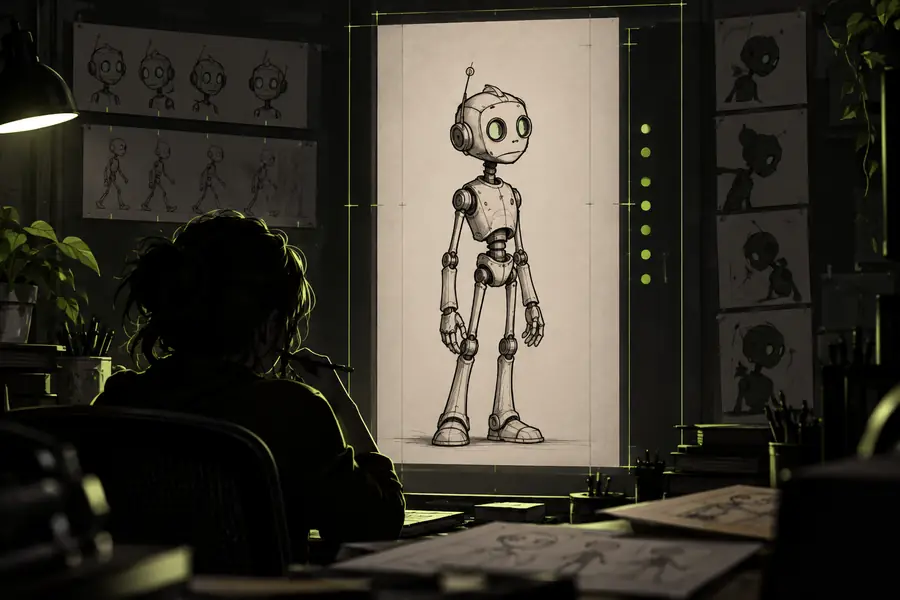
Animated character source frame before a speaking pass
Animated character example after a lip sync pass

Next step

Turn a voice track into a character performance

Start with a short, clean line and a clear character image or scene. The creation workflow gives you a practical place to test timing, inspect the first pass, and decide where manual polish will add the most value.

Open Vidione
  • Start from a focused dialogue moment
  • Check timing before polishing details
  • Keep the character design consistent

Common questions

Lip sync animation ai FAQ

It is used to help coordinate a character’s visible mouth movement with spoken audio. Creators can use it for dialogue tests, explainers, short scenes, and other animation workflows where speech timing matters.

It can provide a useful first pass, but it does not remove the need for creative direction or review. Character style, expression, camera angle, audio quality, and scene continuity may still require manual refinement.

Clear speech, readable mouth shapes, natural pauses, and a character design with enough space around the mouth all help. The strongest results also consider head movement, facial expression, and whether the mouth changes match the emotional delivery.

No single workflow fits every design equally well. Front-facing characters with a visible mouth are generally easier to evaluate, while masks, extreme profiles, heavy motion, or highly abstract faces may need more custom animation work.

Start creating
Start creating