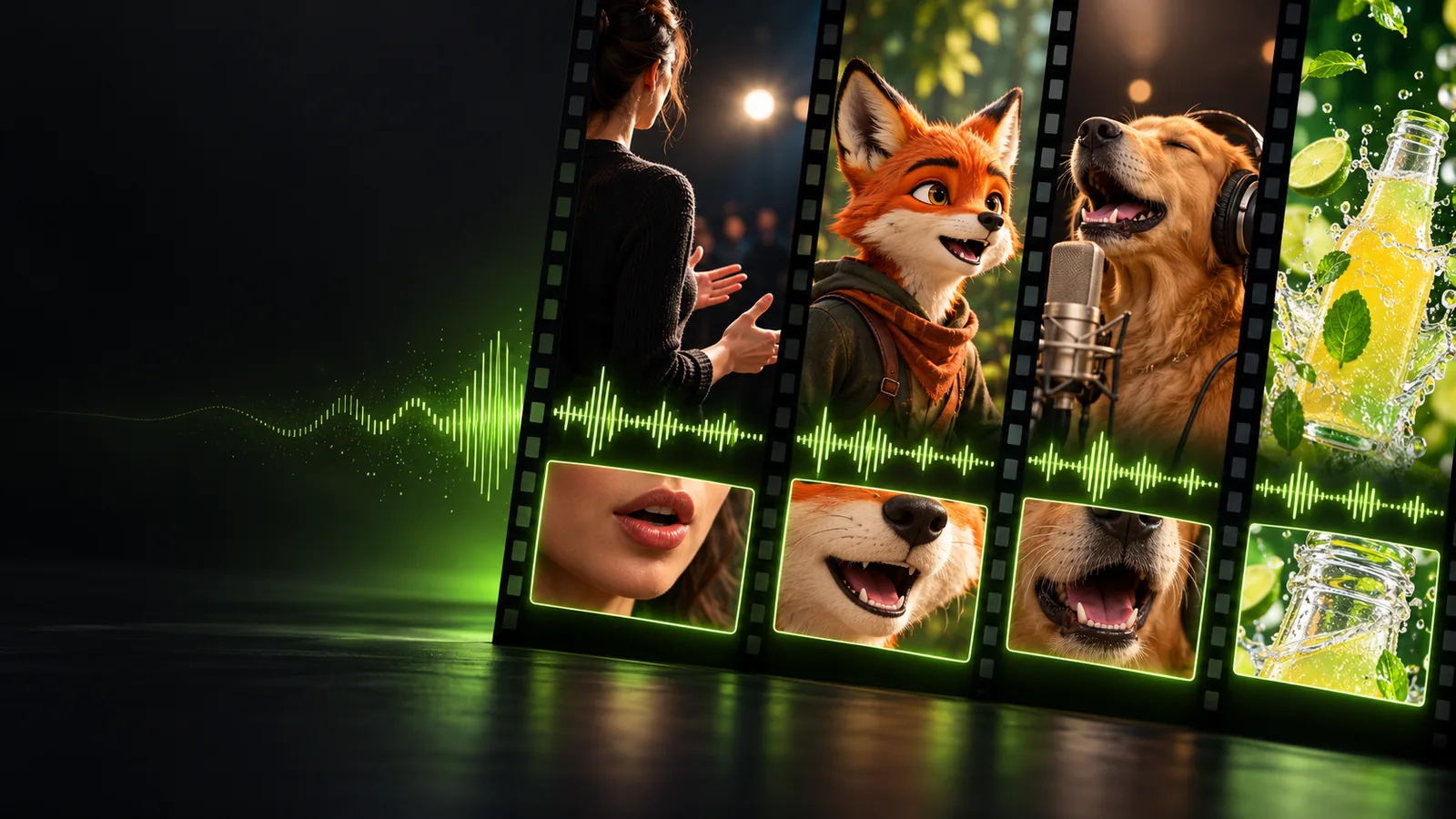
YouTube workflow

Use lip sync for youtube to shape a stronger channel

This page explains lip-sync concepts. The linked Vidione home page offers paid talking-avatar generation from a script, person portrait, and voice; enter those on Vidione after signing in. It does not promise source-video dubbing, singing videos, or reference-motion control. Browser timeline editing does not require a subscription, but AI generation does.

Lip sync for youtube becomes easier to manage when the audio, facial performance, and final edit are treated as one workflow. Start with a clear source and refine the result before publishing.

Link only. Nothing written or selected here is sent to the destination.

Open Vidione
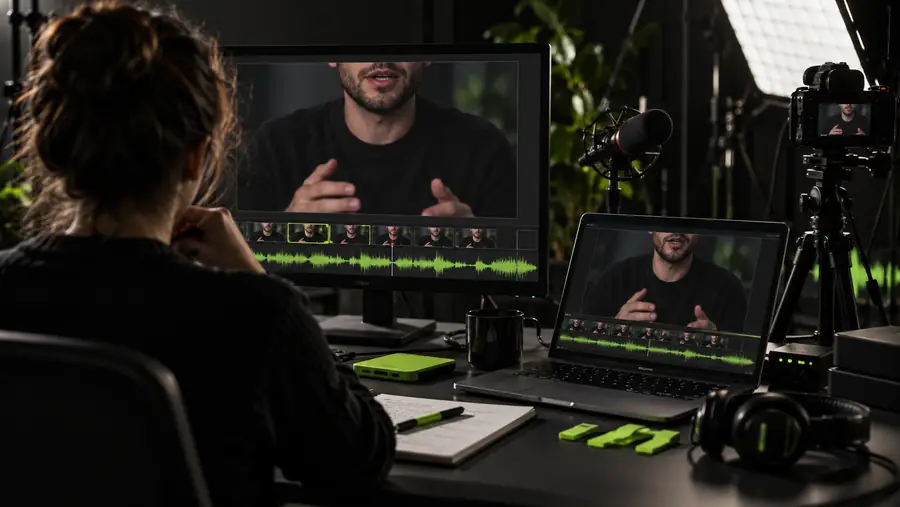
Creator preparing a lip sync video for a social channel

Start with the problem

The YouTube pain: good footage, mismatched speech

A strong recording can lose credibility when mouth movement trails the dialogue, a dubbed line feels detached, or a creator has to reshoot an otherwise usable take.

A repeatable process

Three concrete workflows

Choose the workflow that matches your source material, then keep the review focused on intelligibility, timing, and whether the result still feels natural on screen.

  1. 1

    Prepare the source

    Choose a clear face-forward clip, isolate the intended dialogue, and remove obvious pauses or overlapping speech before starting.

  2. 2

    Align the performance

    Provide the source visual and spoken track, then inspect consonants, pauses, and emphasis rather than judging the entire clip at once.

  3. 3

    Review for YouTube

    Watch the result with sound on and off, check the opening seconds and captions, then make the final edit in your normal publishing workflow.

Workflow snapshot

Example output

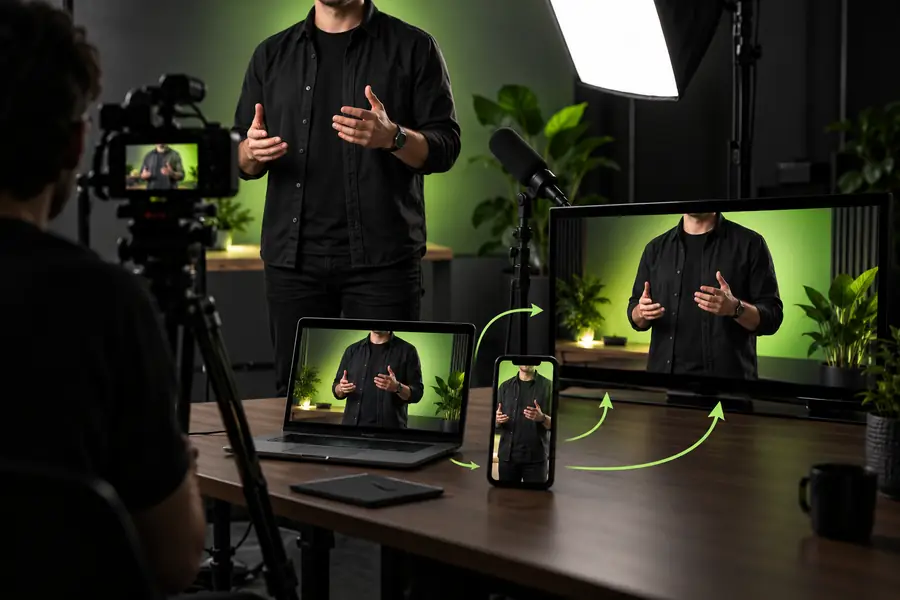
A useful review looks at the full publishing unit, not only the mouth movement. These checkpoints keep the edit easy to inspect before it reaches your channel.

1 Use one clearly identified visual source for each edit.
1 source clip
2 Keep the intended spoken audio separate from music and effects while reviewing.
1 dialogue track
3 Inspect timing, intelligibility, and disclosure before publishing.
3 review checks

Publishing comparison

Example output

The table below separates a rushed upload from a considered channel asset. It is a review framework, not a promise about any particular platform setting.

1

Source choice

Rushed upload

Mixed lighting, obstructed face, or unclear speaker

Reviewed YouTube asset

Readable face and a clearly identified speaker

2

Dialogue

Rushed upload

Music or room noise competes with the spoken line

Reviewed YouTube asset

Speech is easy to follow during the review

3

Mouth timing

Rushed upload

Consonants and pauses feel visibly late

Reviewed YouTube asset

Key words and pauses are checked against the audio

4

Edit structure

Rushed upload

Long setup before the useful moment

Reviewed YouTube asset

Opening seconds establish the clip quickly

5

Captions

Rushed upload

Captions are added without checking the final timing

Reviewed YouTube asset

Captions are reviewed against the finished performance

6

Disclosure

Rushed upload

Synthetic or altered elements are left unexplained

Reviewed YouTube asset

Relevant context is added where viewers need it

Visual review

Before and after the edit

The meaningful difference is not simply a moving mouth. It is whether the visual performance supports the words, emphasis, and pacing that viewers hear.

  • Before review
  • After alignment

Compare timing, clarity, and viewer context before export.

Video frame before a YouTube lip sync review
Video frame after a lip sync performance review

Channel applications

Compliance notes for different creators

The right review standard changes with the channel. These use cases help creators decide what to inspect before a lip sync edit becomes public.

Commentary creator

A presenter needs to repair a spoken line without rebuilding the entire talking-head segment.

Keep the message understandable, then recheck captions, pacing, and whether the edit changes the speaker's apparent meaning.

lip sync for animation

Faceless channel editor

A narrated visual uses a visible character or presenter for a short explanatory segment.

Match the visual performance to the narration while keeping the channel's voice, sourcing, and disclosure practices consistent.

animation lip sync

Music and reaction channel

A creator builds a performance-led short around a supplied vocal or dialogue track.

Review the rights to the audio and footage separately from the timing edit, then make the transformed nature of the clip clear when appropriate.

lip sync in animation

Brand or education channel

A team needs a corrected presenter segment for an announcement, lesson, or product explanation.

Preserve the speaker's intended statement, document the source material, and assign a human review before release.

animated lip sync

Ready to refine

Make the next YouTube edit easier to review

Bring a clear visual source and intended dialogue into one focused workflow. Then check timing, captions, rights, and viewer context before the finished video goes live.

Open Vidione
  • Use a source you are allowed to edit
  • Review the finished performance before publishing
  • Add context when an altered performance could mislead viewers

Channel FAQ

Scenario FAQ

It can help align visible mouth movement with supplied dialogue in a creator video, explainer, reaction, or performance edit. It is most useful when the source visual and intended audio are clear enough to review together.

A focused edit may be appropriate when only a short line, pause, or performance segment needs attention. Review the result in context, because a technically aligned mouth can still feel unnatural if the cut, expression, or surrounding audio does not match.

Consider whether the edit could cause viewers to misunderstand who said something or what happened in the original recording. When the alteration is material, add clear context and follow the rules that apply to your channel, subject, source material, and audience.

Check the source and audio rights, mouth timing, intelligibility, captions, opening seconds, and any disclosure needed for altered media. Watch the final export with sound on and off so both the performance and the edit make sense.

Start creating
Start creating