Portrait creator
You have a still face but have not settled on a video workflow.
Check image-selection considerations before preparing speech.
lip sync photoPhoto to video
This page explains lip-sync concepts. The linked Vidione home page offers paid talking-avatar generation from a script, person portrait, and voice; enter those on Vidione after signing in. It does not promise source-video dubbing, singing videos, or reference-motion control. Browser timeline editing does not require a subscription, but AI generation does.
A photo lip sync video maker starts with a still face and aims to create a clip that appears to speak. The key is knowing which details come from your image, which must be generated, and what to inspect before sharing.
Link only. Nothing written or selected here is sent to the destination.
Open Vidione
The source image supplies appearance, not a record of speech or movement. These related guides help separate the input from the intended result.
A single frame cannot reveal how its subject actually moves, speaks, or looks from another angle. Treat generated motion as an interpretation.
A portrait contains no original voice, cadence, pauses, or mouth movements. A convincing clip does not establish that the pictured person said those words.
WorkaroundUse speech you have permission to use and identify synthetic performances where context calls for it.
Teeth, the inside of the mouth, and a turned profile may be absent from the source. Their appearance in motion has to be inferred.
WorkaroundPrefer a clear, front-facing image and review frames where the mouth opens or the head turns.
Obstructions, small faces, extreme expressions, or poor lighting can make visual consistency harder to judge.
WorkaroundChoose an unobstructed portrait and keep the first test clip short.
Use this three-part workflow as a preparation checklist; confirm the destination tool's actual input and output options before proceeding.
Use an image you are allowed to animate. A visible, reasonably level face makes the resulting mouth and eye regions easier to inspect.
Write a short line or prepare audio, then check which speech input the tool accepts. Decide whether the clip should be presented as fictional or synthetic.
Watch at normal speed, then replay consonants, pauses, and the first and last frames. Revise the source or speech if artifacts distract from the message.
Source photo
Intended talking video
Source photo
One captured instant
Intended talking video
A sequence of frames
Source photo
Visible features at one angle
Intended talking video
Features must remain consistent during motion
Source photo
One fixed shape
Intended talking video
Changing shapes should follow the speech
Source photo
Not present in the image
Intended talking video
Requires a separate speech source or generation method
Source photo
No speaking timeline
Intended talking video
Mouth movement must align with audible syllables
Source photo
Shows a person's appearance
Intended talking video
Does not prove that person performed the speech
Source photo
Inspect sharpness and face visibility
Intended talking video
Inspect timing, continuity, and visual artifacts
Compare the input face with several frames from the result, rather than judging only the opening frame. Listen and watch together for delayed syllables or abrupt changes.
These illustrations explain the input-to-output distinction; they are not a verified conversion of the same portrait.
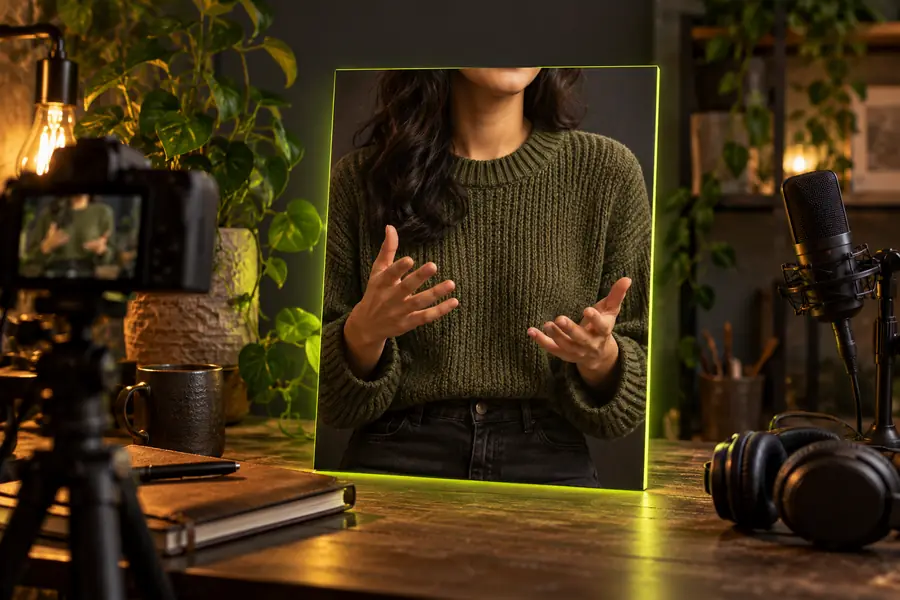
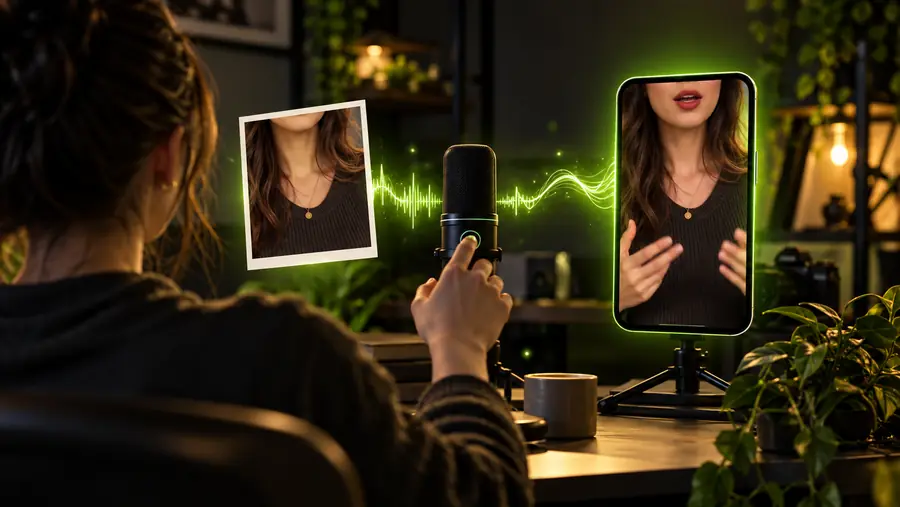
A talking portrait is only one kind of lip sync project. Start with the material you already have and the result you need.
You have a still face but have not settled on a video workflow.
Check image-selection considerations before preparing speech.
lip sync photoYour subject is a drawn character rather than a photographed person.
Plan dialogue timing around the character's intended expressions.
lip sync for animationYou already have a clip whose mouth movement looks out of time.
Diagnose the existing sync issue before remaking the visual.
How to fix lip sync issues?Keep the first attempt easy to evaluate. Confirm the available input options at the destination, use material you have permission to animate, and inspect the result before publishing it.
Open VidioneA still image does not contain speech, so the workflow also needs a way to specify what should be said. Depending on the tool, that may involve supplied audio, written dialogue, or another supported speech input; check its available options.
Not necessarily. A small, blurry, heavily angled, or obstructed face leaves important details unclear, especially around the mouth. A well-lit image with a visible face is easier to assess.
Play the clip with sound and watch the starts and ends of words, strong consonants, and pauses. Then check individual moments for unnatural mouth shapes or changes to the face.
No. Generated facial movement can make an image appear to speak without documenting a real performance. Get permission to use someone's likeness and avoid presenting synthetic speech as an authentic recording.
No. Photo conversion creates apparent motion from a still source, while repair work addresses timing in footage that already has moving frames. The source material determines which workflow makes sense.